From a connected Android device, open Android Studio 🔗
- Connect the device via USB
- Approve USB debugging
- Open View → Tool Windows → Logcat
- Reproduce the issue
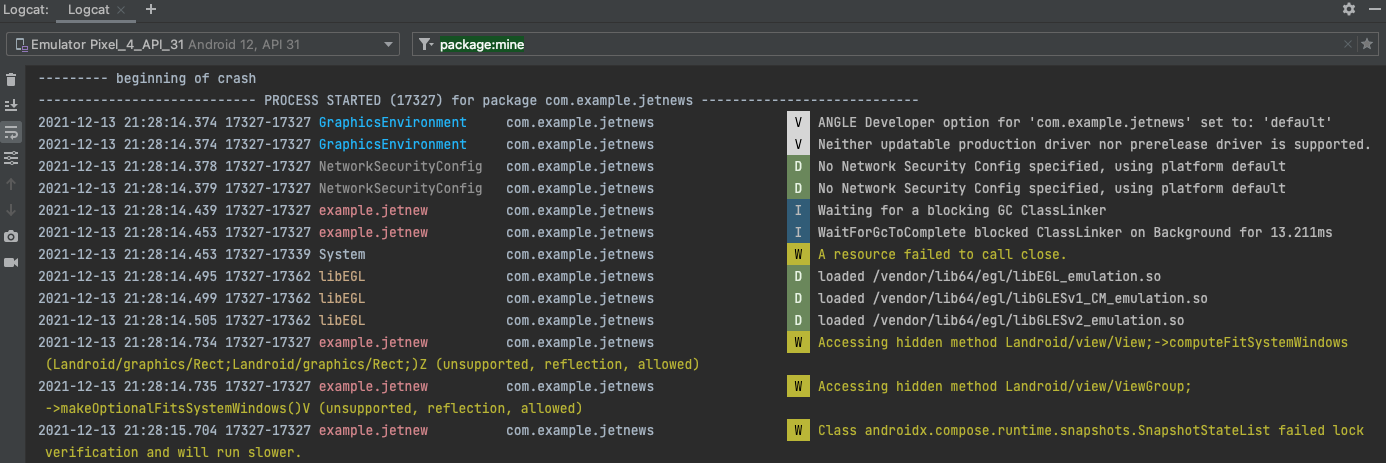
More details
Logcat displays real-time system logs from your device.
Crashes usually appear as fatal or Exception entries
under the AndroidRuntime tag.
Filter for Errors 🔗
- Log level: Error
- Keywords:
fatalexception
Enable Developer Options 🔗
- Settings → About phone
- Tap Build number 7 times
- Settings → System → Developer options
- Enable USB debugging
Note: The location of Build number may vary depending on the device brand (Samsung, Pixel, OnePlus, Xiaomi, etc.).
Why this is required
Developer Options unlock debugging access between your device and computer. USB debugging is mandatory for both Logcat and ADB-based log capture.
Install Android ADB Tools 🔗
- Download Android Platform Tools
- Extract to a known folder
- Open a terminal in that folder
adb versionMore about ADB
ADB (Android Debug Bridge) allows command-line access to device logs and is ideal when Android Studio is unavailable or for CI / automation environments.
Common ADB Commands 🔗
adb devices -ladb logcatadb logcat *:Eadb logcat -d > logcat.txt